

عبّر عن الموضوع الذي تحتاج إلى مساعدة بشأنه بجمل قصيرة، وسيجد روبوت المساعدة لدينا المواضيع ذات الصلة لك.
نوصيك بالاطلاع على دليل استخدام برنامج Dr.DENTES لإدارة عيادات الأسنان للاستفادة منه بشكل أفضل والتعرّف على جميع مميزاته. يمكنك الوصول إلى المعلومات التي تحتاجها من خلال مواضيع المساعدة أو صندوق البحث. وإذا لم تجد إجابة عن سؤالك بعد مراجعة الدليل بالكامل، يمكنك طلب المعلومات من خلال قسم الاستفسارات في Dr.DENTES.
يتم نسخ بياناتك احتياطيًا يوميًا بواسطة Dr.DENTES، ويتم الاحتفاظ بنسخ احتياطية لآخر 7 أيام. يمكنك أيضًا أخذ نسخة احتياطية خاصة بك من داخل Dr.DENTES في أي وقت (راجع: العيادة).
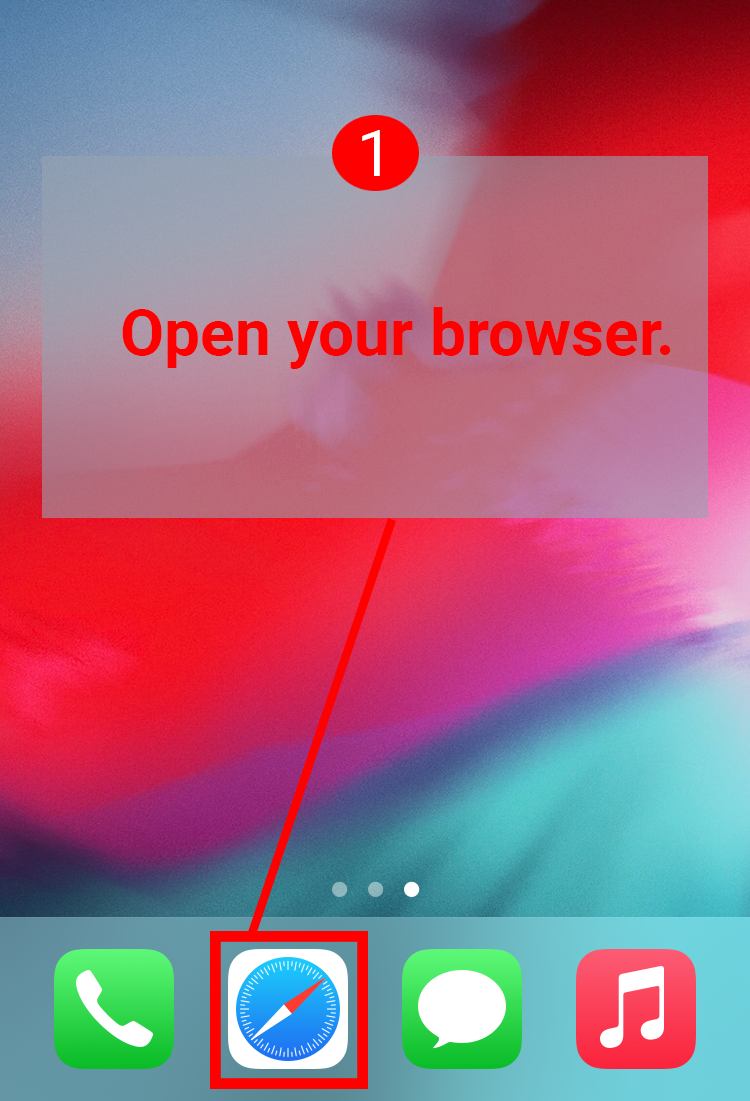
افتح متصفح الإنترنت على هاتفك المحمول.
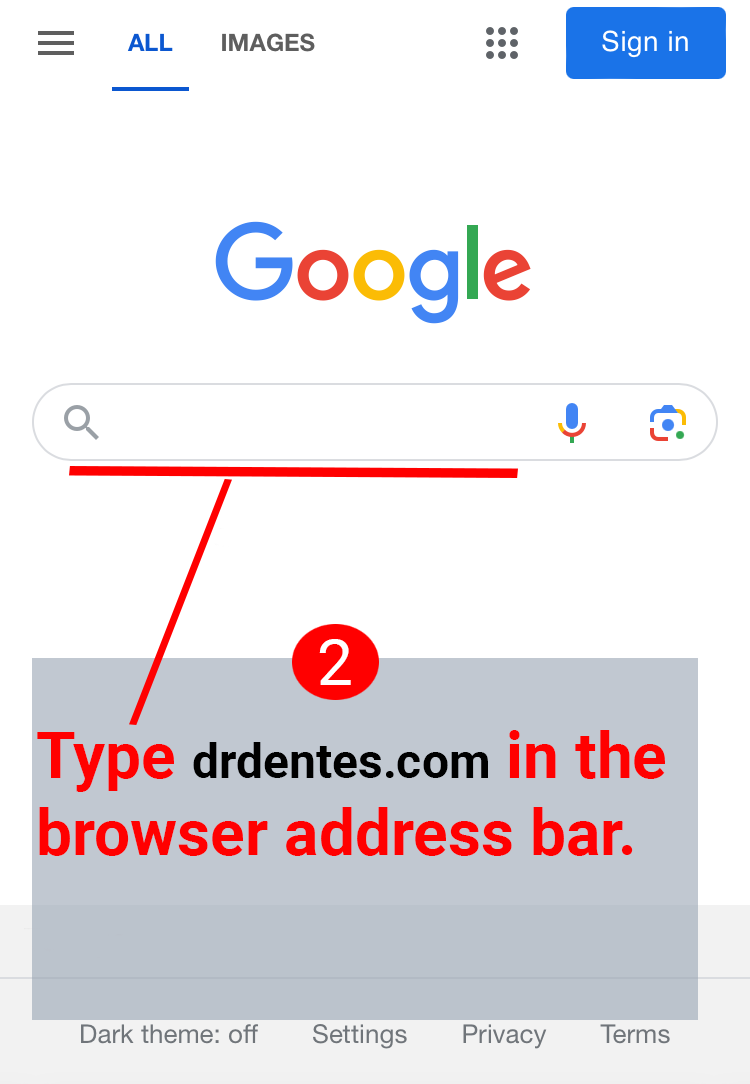
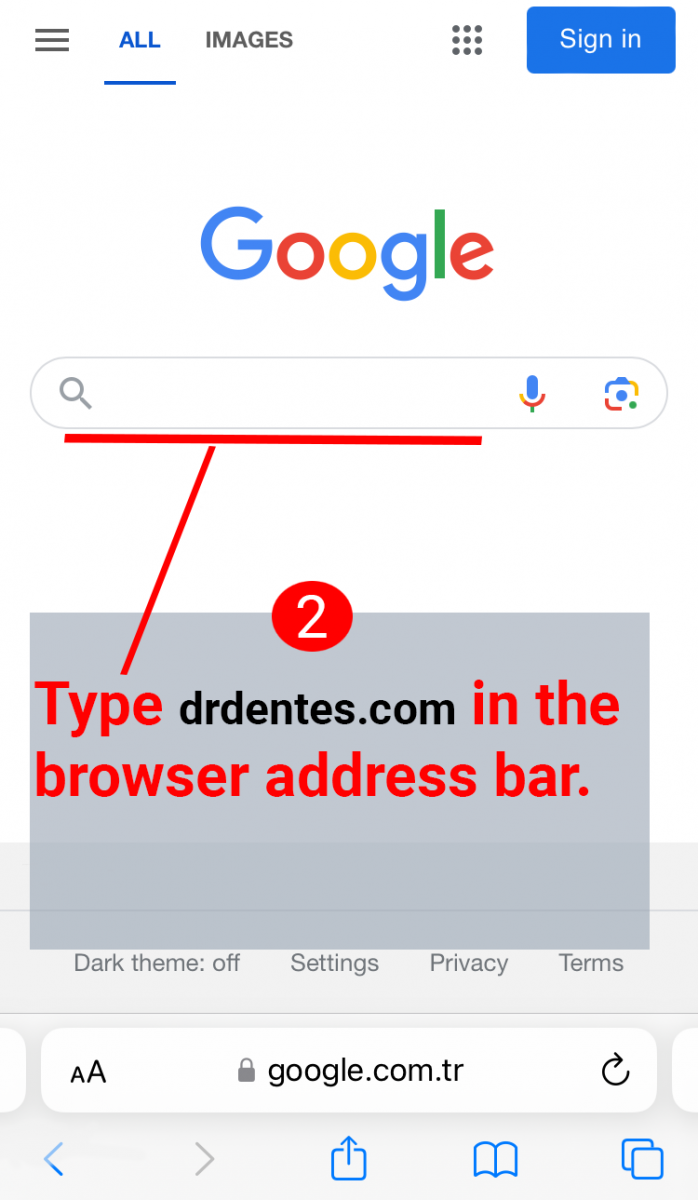
اكتب drdentes.com في شريط عنوان المتصفح.
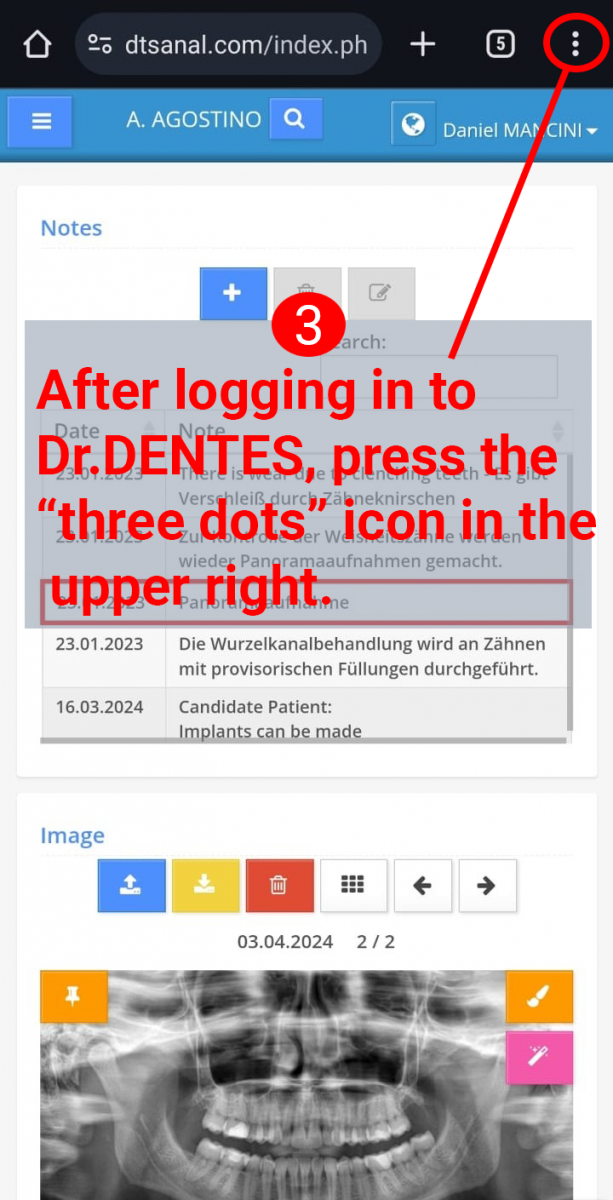
بعد تسجيل الدخول إلى Dr.DENTES، اضغط على أيقونة "النقاط الثلاث" في أعلى اليمين.
.png)
اضغط على "إضافة إلى الشاشة الرئيسية".
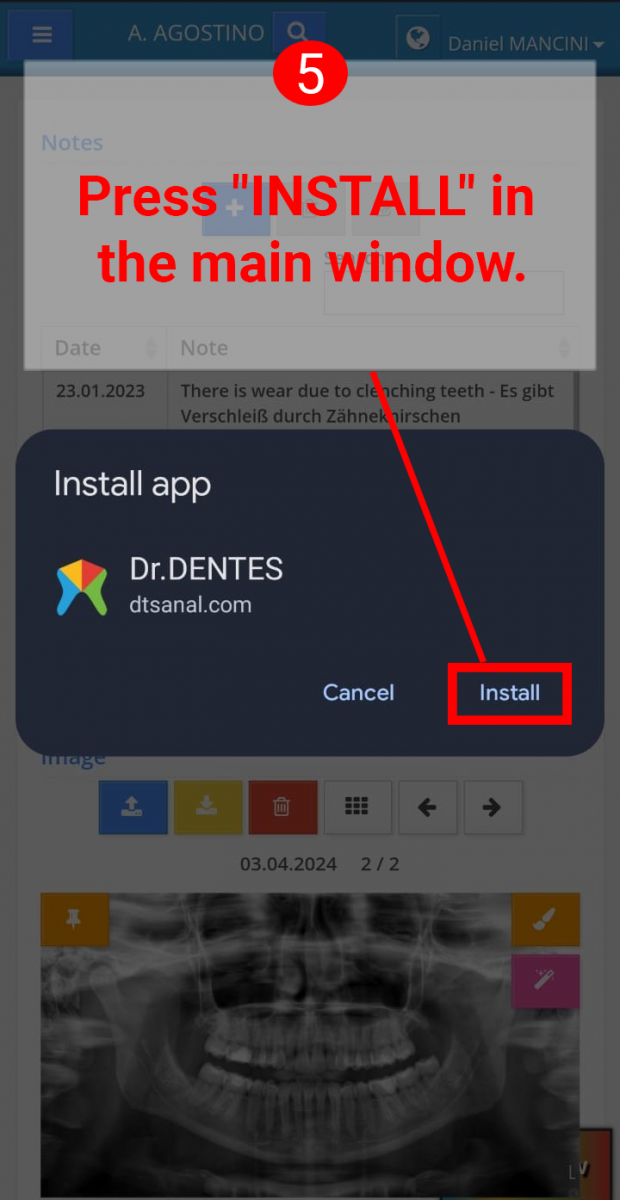
اضغط على "إضافة" في النافذة التي تظهر.
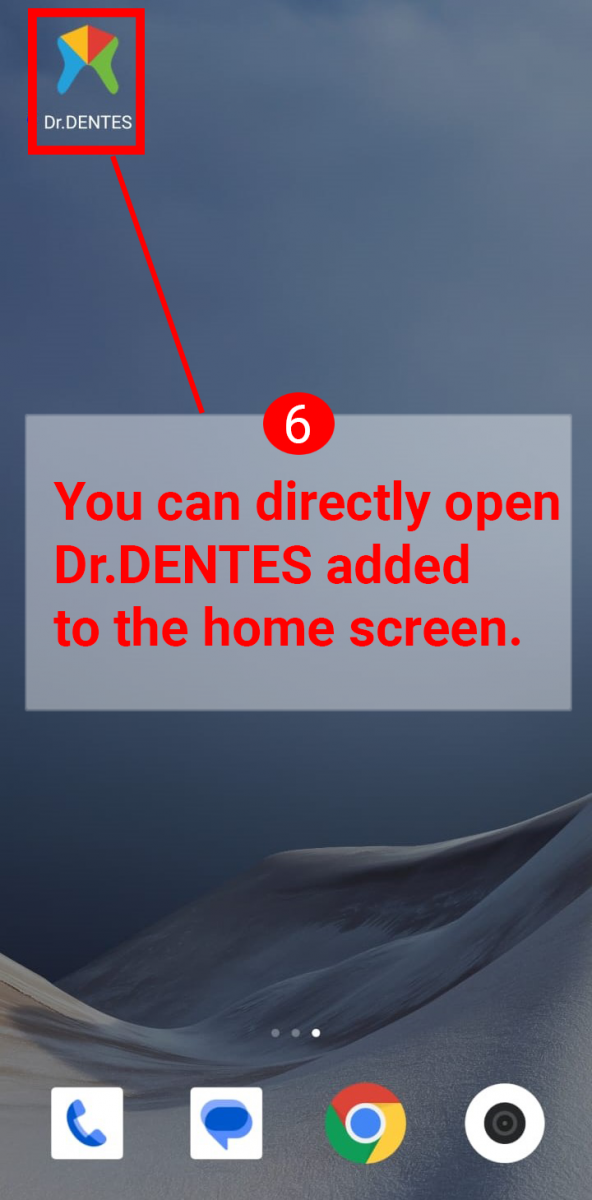
يمكنك فتح Dr.DENTES المُضاف إلى الشاشة الرئيسية مباشرةً.
.png)
افتح متصفح الإنترنت على هاتفك المحمول.
اكتب drdentes.com في شريط عنوان المتصفح.
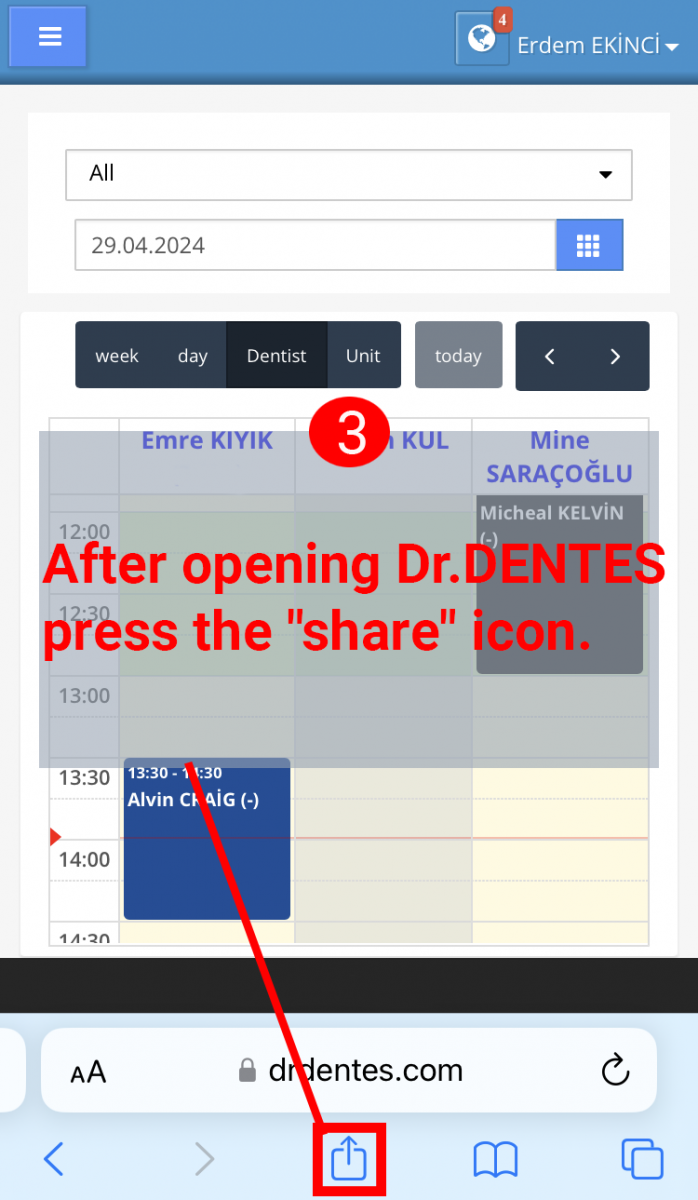
بعد فتح Dr.DENTES، اضغط على أيقونة "المشاركة".
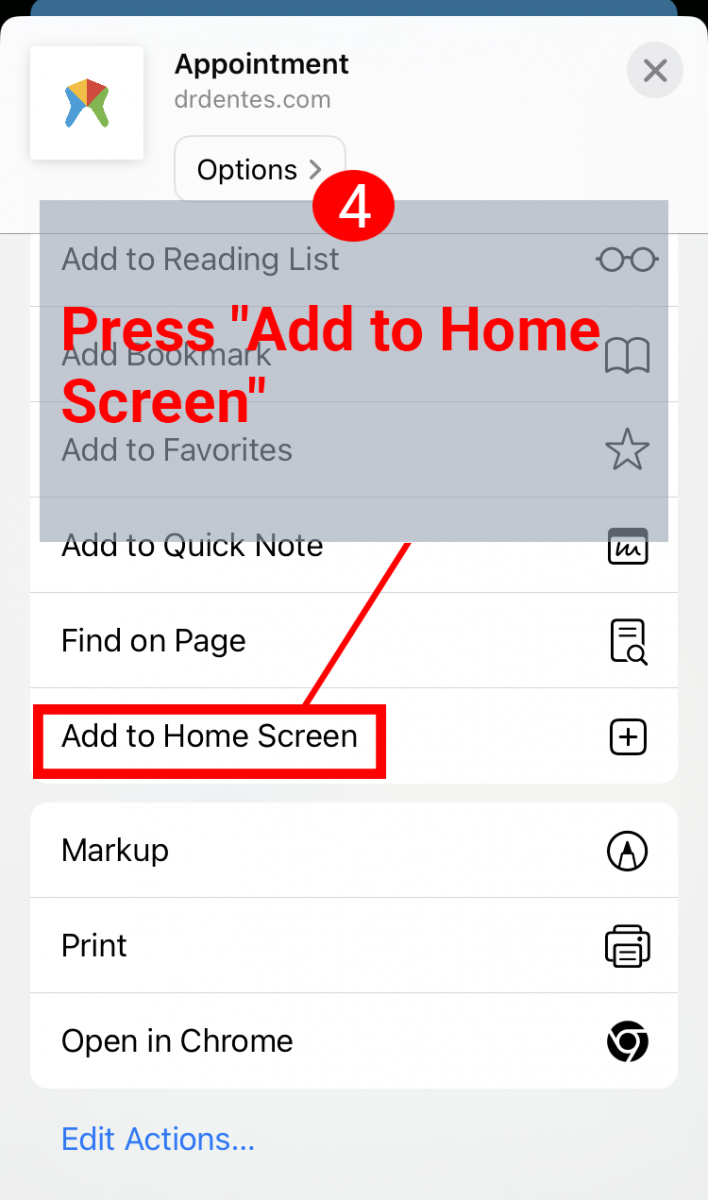
اضغط على "إضافة إلى الشاشة الرئيسية".
اضغط على "إضافة" في أعلى اليمين.
يمكنك فتح Dr.DENTES المُضاف إلى الشاشة الرئيسية مباشرةً.
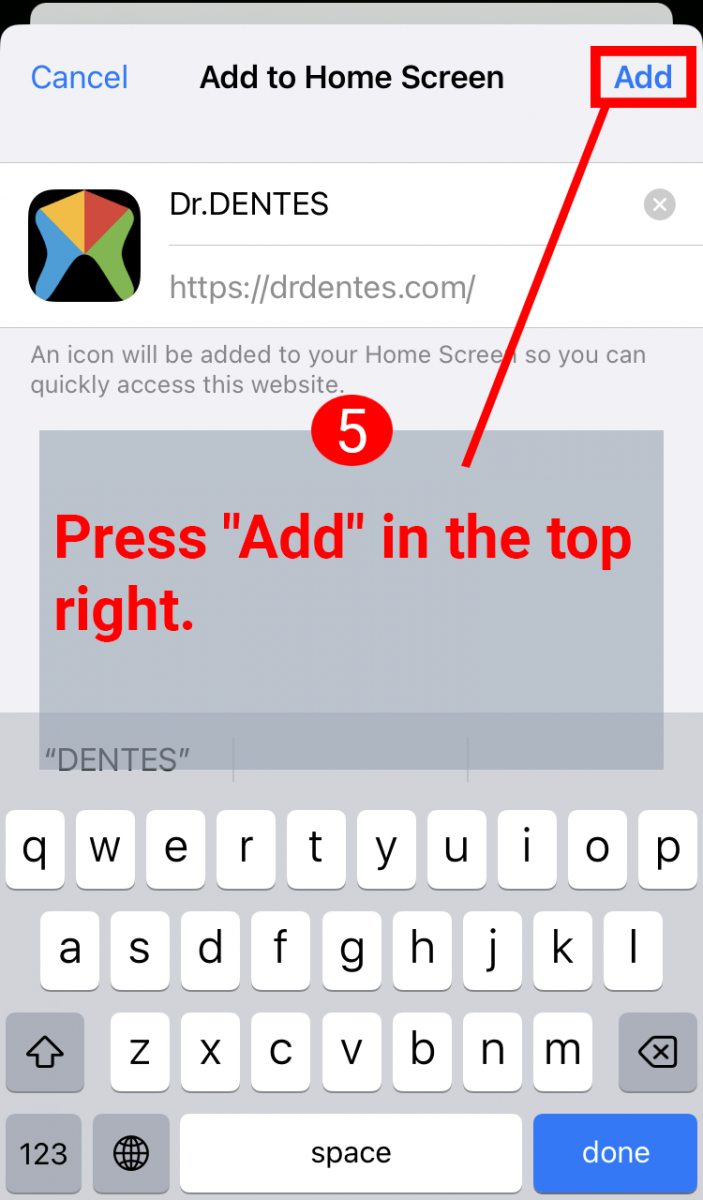
افتح متصفح الإنترنت.
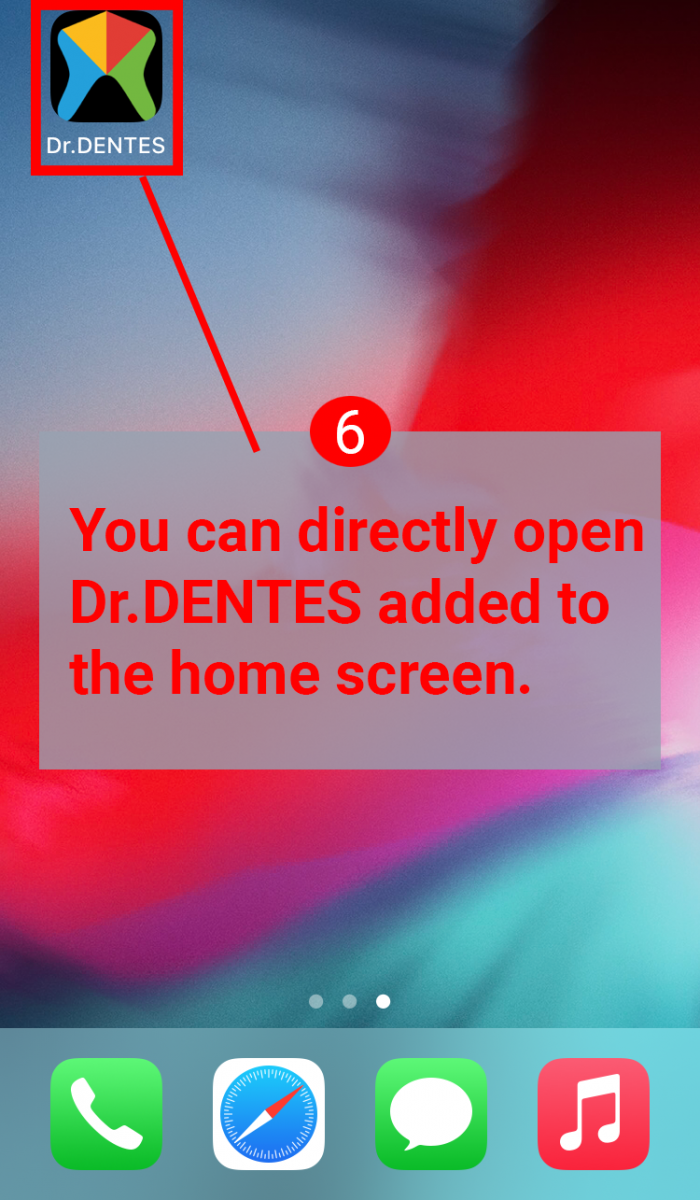
اكتب drdentes.com في شريط عنوان المتصفح.
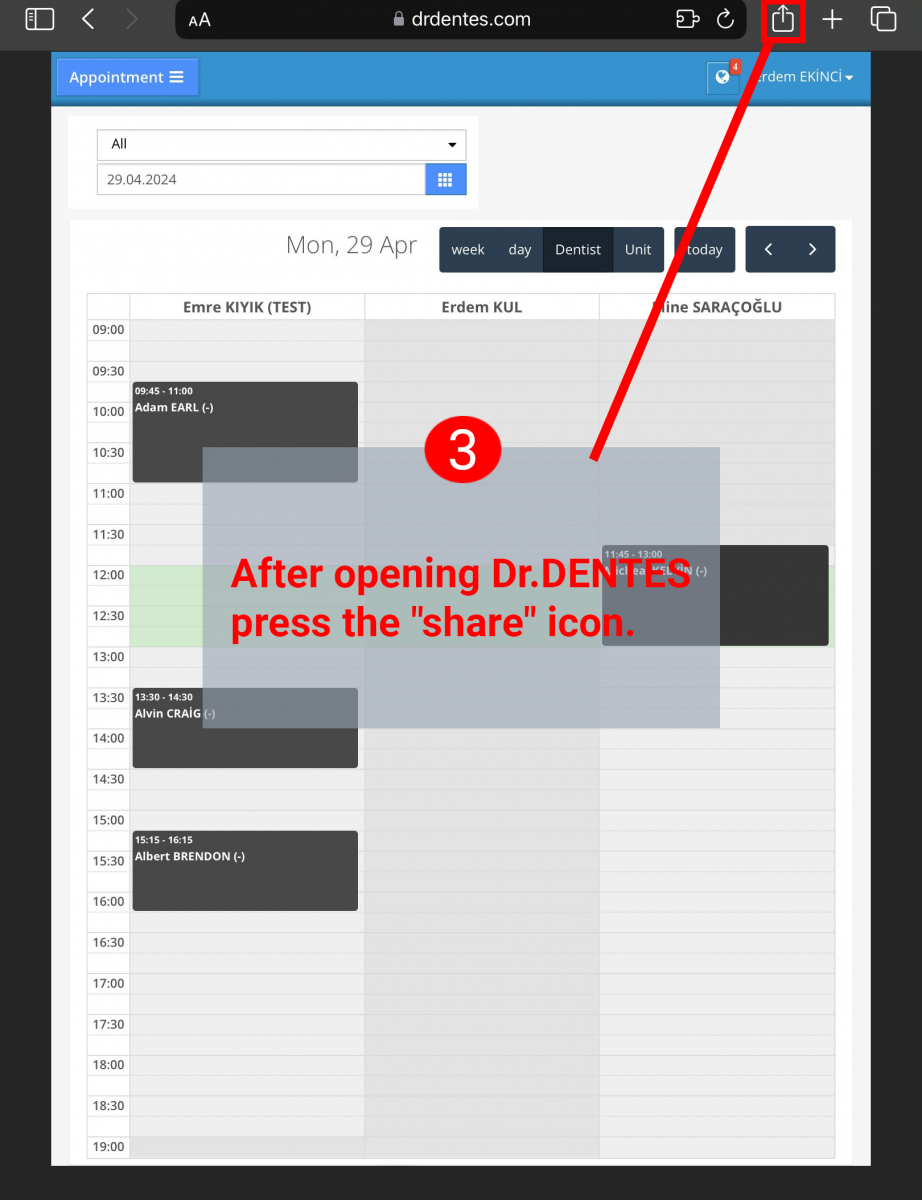
بعد فتح Dr.DENTES، اضغط على أيقونة "المشاركة".
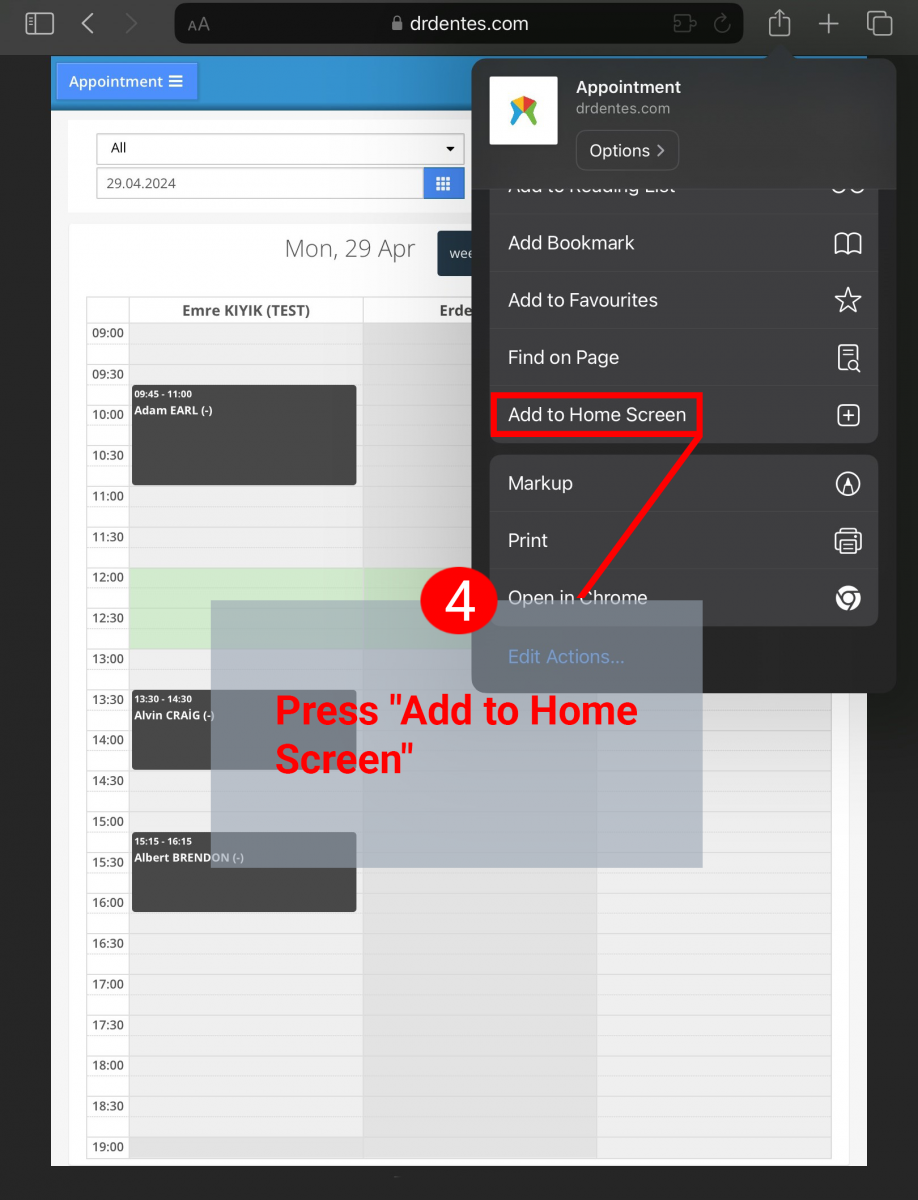
اضغط على "إضافة إلى الشاشة الرئيسية".
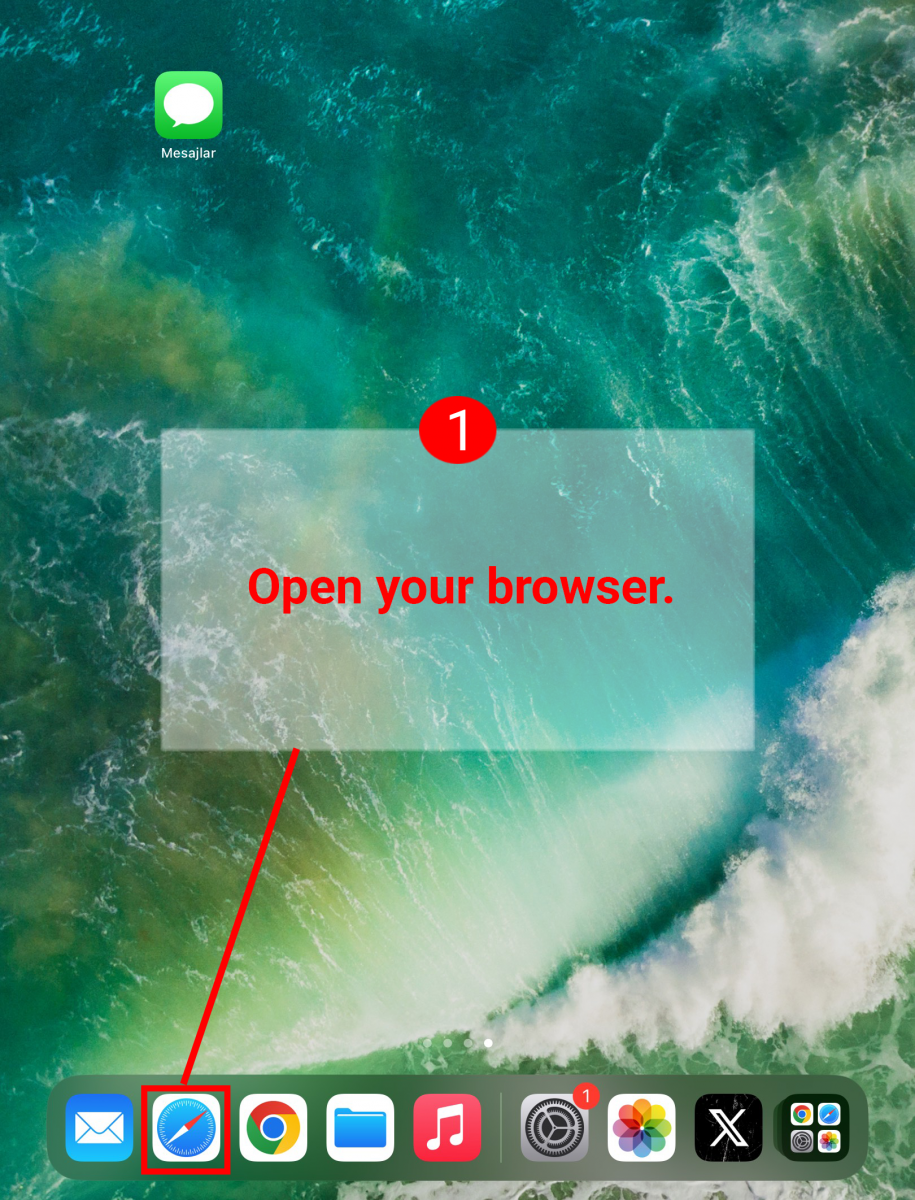
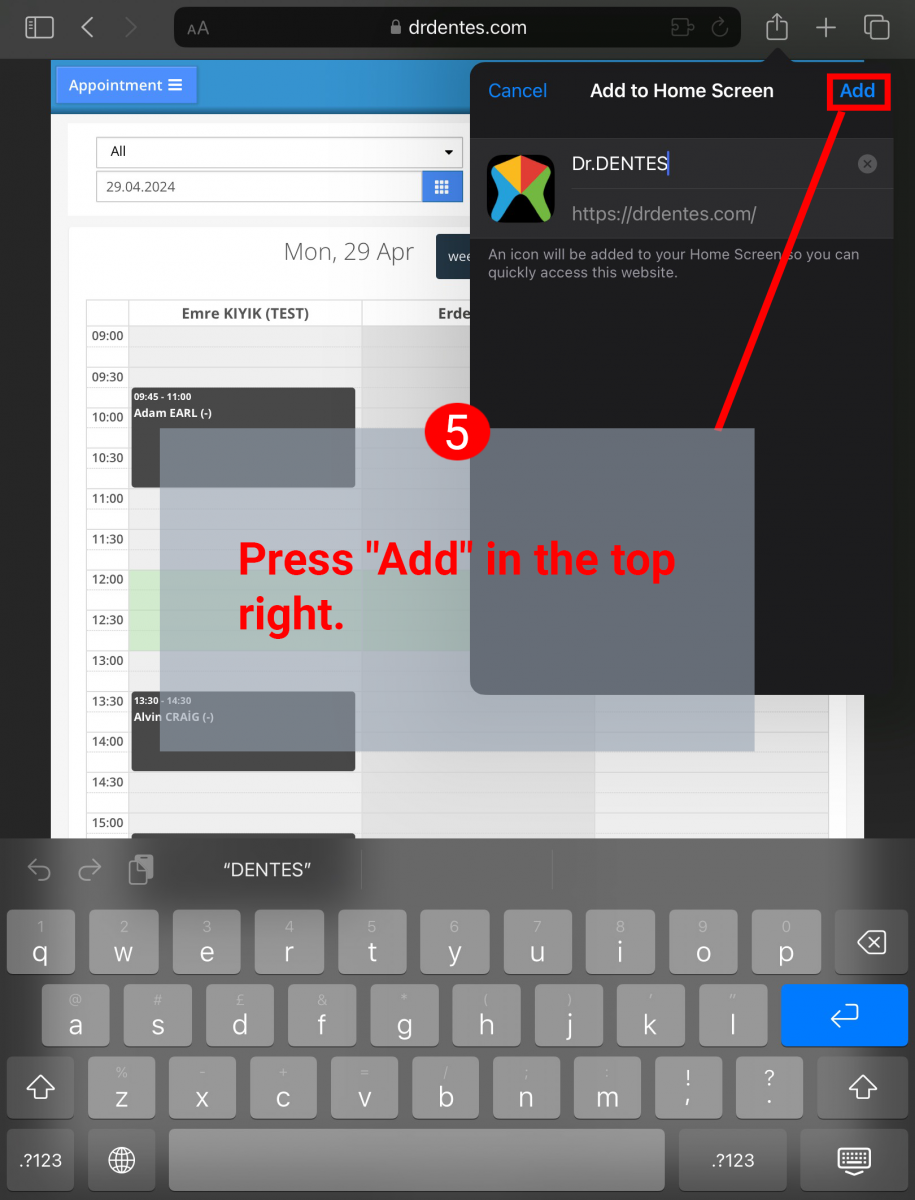
اضغط على "إضافة" في أعلى اليمين.
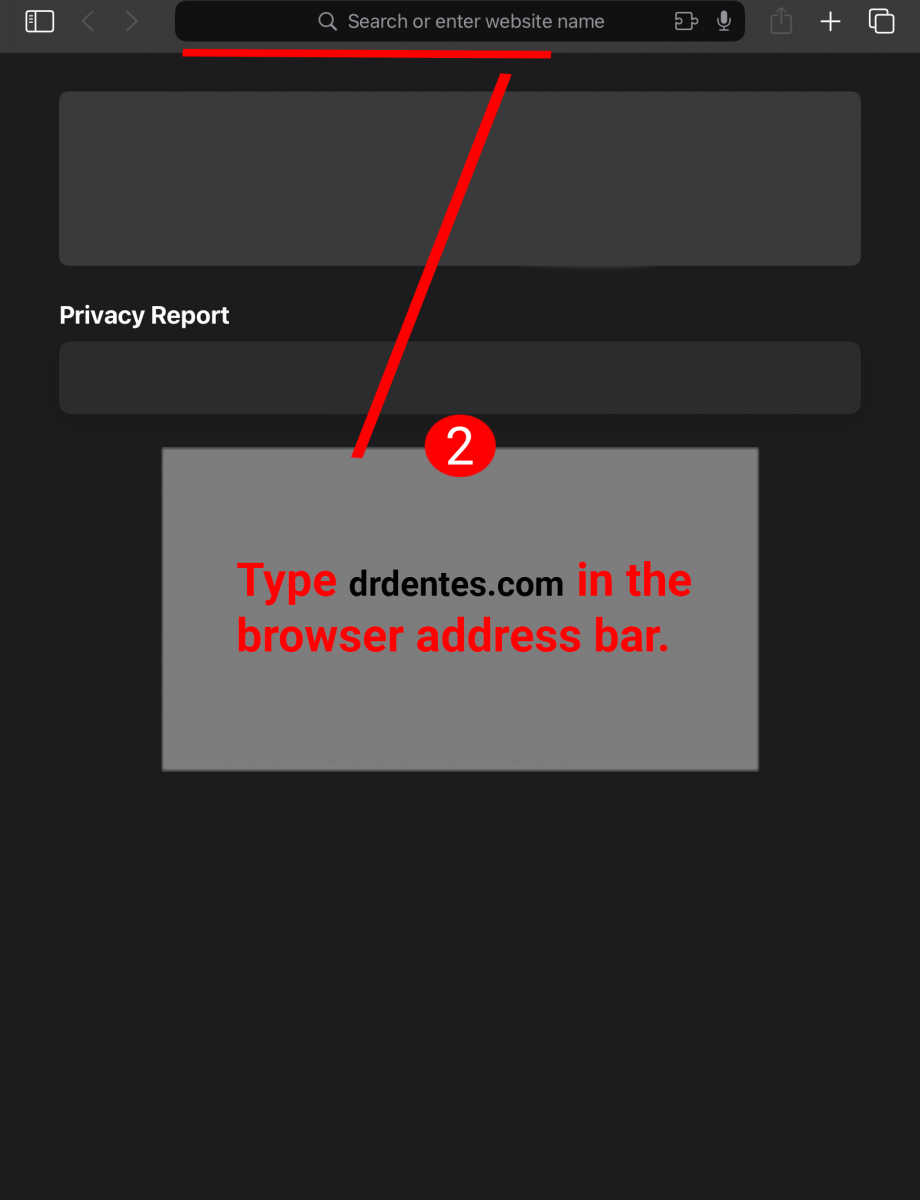
يمكنك فتح Dr.DENTES المُضاف إلى الشاشة الرئيسية مباشرةً.
.png)
افتح Dr.DENTES من متصفح الإنترنت.

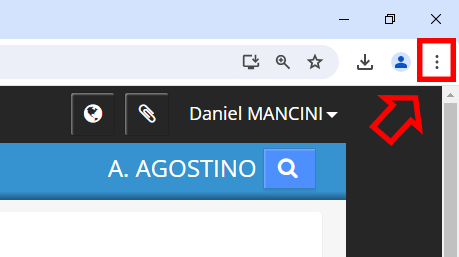
بعد فتح Dr.DENTES، اضغط على أيقونة "النقاط الثلاث" في أعلى يمين المتصفح.
مرّر مؤشر الفأرة فوق "المزيد من الأدوات"، ثم انقر على "إنشاء اختصار..." في النافذة التي تظهر.
.png)
اضغط على "إنشاء/تثبيت".
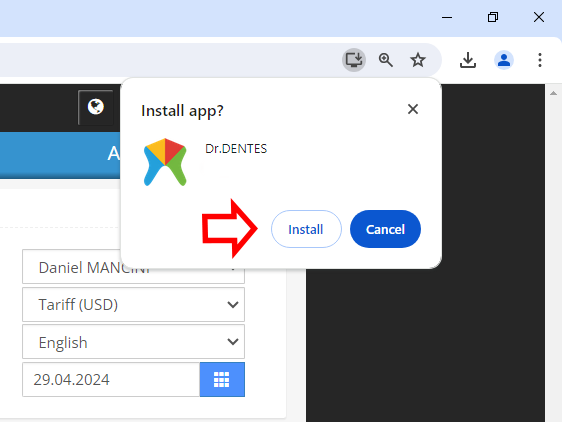
يمكنك فتح Dr.DENTES مباشرةً باستخدام الاختصار المُضاف إلى سطح المكتب.

هو نظام أنشأته وزارة الصحة، يقوم فيه الأطباء/العيادات بإدخال أعداد المرضى الذين استقبلوهم شهريًا، وعدد عمليات خلع الأسنان التي أجروها، وعدد زراعات الأسنان، وعدد التدخلات الجراحية، وعدد العلاجات التحفظية، وعدد علاجات جذور الأسنان، وما إلى ذلك.
